| Feature |
Support Status |
Details |
| Multiple Dataset Options |
Supported |
There are currently two types:
- User - These are used to run reports on user access and logins
- Form data - These contain data from system records/profiles, documents, workflows and audit events such as views, updates or downloads
|
| Field Selection |
Supported. |
With the exception of Data Room/App form fields set all the other fields are system fields added by us, so if any required are not covered then feel free to put in a request with Sysero to have them added. |
| Repeaters |
Supported. |
Fields in repeating sections work in report columns as well as filters, aggregation also works. |
| Coupled Data Rooms |
Not supported, no plans to under initial release. |
N/A |
| Aggregation e.g. Count/Sum/Min/Max |
Supported. |
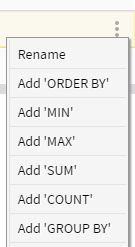
Report aggregation can be set by clicking on the right menu and selecting aggregation required. Please note that if you are using options like Count then other fields will automatically have "Group By" applied in background out of necessity, otherwise the report would not function. You cannot set more than one aggregation per field. Aggregation can also be used in Static Filters to add a condition where the result of the aggregation is in a certain range. For example you could add a count on a specific column in the static filters and the condition could say it would only show rows where the count was greater than 10.
 |
| Export to Excel |
Supported. |
The option will appear when viewing a report if the setting "Enable Excel Download" has been checked in Report Settings. It allows the report to be viewed in Excel for further custom filtering, sorting and presentation, as well as sharing. In the case of the latter it is always best to be cautious to avoid sharing personal information. |
| Enable XML Link |
Supported. |
If this setting is enabled then the data from this report can be access in XML format by external applications. |
| Embedding in Emails |
Supported. |
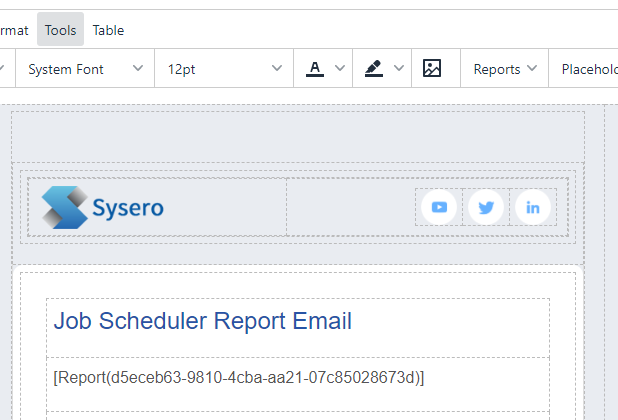
Reports can be embedded in emails using the Reports menu on the HTML editor. This will add a piece of text inside brackets that will be replaced with report data at runtime.
 |
| Custom Column Title |
Supported |
The rename option is available on the right menu of selected fields. This is useful because the automatic column name, especially for system fields, isn't always going to be relevant to how you want to use the data. |
| Custom Link Title |
Supported |
If the data in a column returns a URL beginning with http:// or https://, you can set the text of links that are generated using this setting. There is partial support for using other columns as a title, for example a field on the form, but it requires that field to be added to the report columns. However if they are not required to be displayed they can be set to "Hide this column" on the right menu. |
| Hide this column |
Supported |
Some columns might be required for data but not need to be shown, e.g. link columns. They are used in list presentation reports to determine the clickable title of each report item. So in this case you need to add the relevant link column, but then use right menu to "Hide this column". |
| Presentation Styles |
Supported |
This can be set under Report Settings. The styles supported are:
- Bar Graph
- Pie Chart
- Line Graph
- Table (grid style view)
- List (similar to search result format but more specific use)
- Search Results (similar to a search result format)
- Single Row and Column (used in dashboard sometimes to show a status)
|
| Maximum Results |
Supported. |
In the report settings you can set this for both preview and published reports individually. Note that very large data sets can impact performance so the defaults are not set too high. |
| Parameters / Runtime Filter Settings |
Supported. |
There is sometimes a need to pass parameters externally or set defaults to runtime parameters, so the following options are available:
- Query string - can be used to set UI default or as hidden parameter. In format of &TextFieldx=value in the URL when linking to the report from elsewhere
- Facet - can be used to set UI default or as a hidden parameter when embedded somewhere such as search results, wiki page or emails.
These can be set to the following:
- =
- >
- <
- STARTS WITH
- ENDS WITH
- CONTAINS
- NOT EQUAL
|
| Static Filter Conditions |
Supported. Currently missing choice lookups for choice fields etc. |
Can be set to the following:
- =
- >
- <
- STARTS WITH
- ENDS WITH
- CONTAINS
- NOT EQUAL
Supports the following psuedo code:
- [!CurrentUserID!]
- [!CurrentUserEmail!]
- [!CompanyID!]
- Today-(days), for example to use this you would add "Today-365" for data over the last 365 days
|
| Static Filter (AND OR) |
Supported. Note there will be occasions where this does not work or operator not removed, if so notify Sysero. |
The right menu gives the option to add parenthesis. You then have the option to toggle them between AND / OR. This is for more advanced filtering combinations. |
| Transform Options on Report Columns and Static Filters |
Supported. |
Options are:
- Default
- Raw value - Do not look up the display text from choice field options or dropdown data actions, instead using the stored database value which can often differ
- Combine with previous column - concatenates this column on to the one before
- Custom SQL - see below.
|
| Transform Custom SQL on Report Columns and Static Filters |
Supported but needs testing |
Gives the ability to change how the field is used using fieldnames directly e.g. TextField1 + ' suffix value'. This requires some SQL knowledge. |
| Distinct |
Supported. |
This ensures that each row selected contains unique data and de-duplicates results, but may be a bit slower in larger reports. |
| Search Results / List Format |
Supported |
The following settings are required:
- Title - Link title.
- DocumentID or Path - Link icon.
- Link - URL it redirects to.
The above if in Report columns can be set to Hidden on the right menu. |